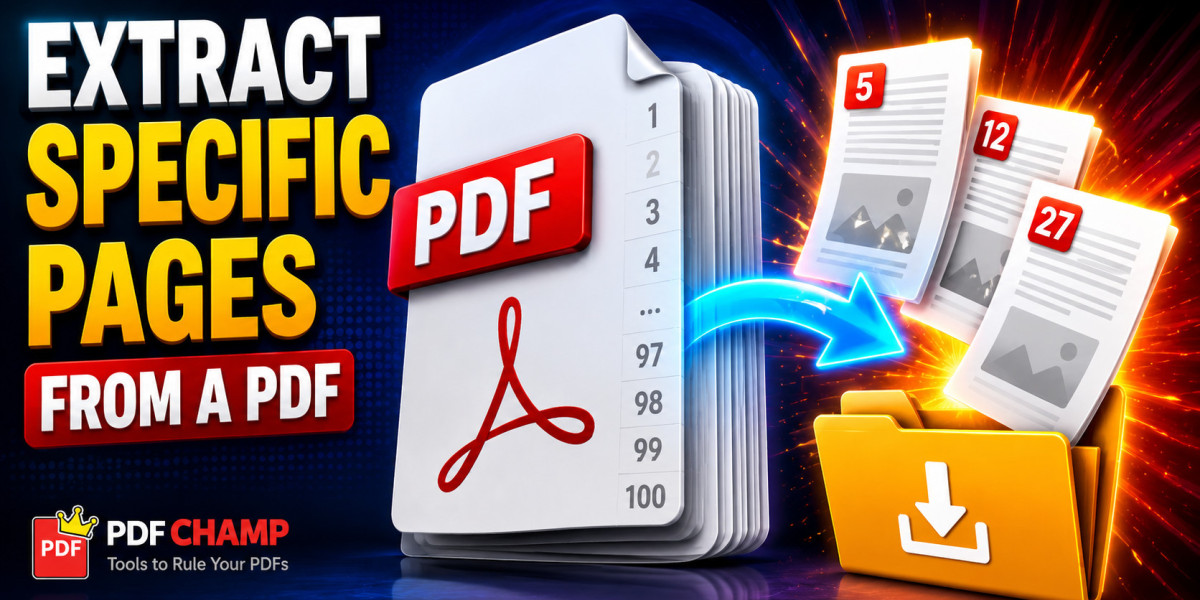

PDF files are useful because they keep the same layout across devices. But when a PDF has too many pages, handling it becomes annoying. Sometimes only a few pages are needed from a long report, contract, invoice, ebook, presentation and scanned document.
Sending the full file is not always practical. It can increase file size, confuse the receiver and expose information that may not be needed.
That is where PDF page extraction helps.
By extracting selected pages from a PDF, users can create a smaller and cleaner file that contains only the required pages. This guide explains simple ways to extract specific pages from a PDF document using Print to PDF, browsers, online tools,and offline PDF page extraction software.
Can You Extract Specific Pages From a PDF?
Yes, specific pages can be extracted from a PDF document. The process usually means selecting page numbers or page ranges and saving them as a new PDF file.
For example, users can extract:
- Only page 4
- Pages 6 to 12
- Pages 2, 5 and 9
- One chapter from an ebook
- Invoice pages from a combined PDF
- Selected sections from a large report
Common ways to extract PDF pages include:
- Print to PDF
- Web browsers
- Online PDF tools
- Offline PDF page extraction tools
The right method depends on the file type, size and privacy level. A small personal PDF can be handled with a browser. A confidential office document is better handled with an offline tool.
Before Extracting Pages From a PDF
Before starting, check the page numbers carefully. In some PDF, the page shown in the viewer doesn't match the printed page number inside the document. This often happens when a file has a cover page, index, introduction and blank pages.
Also check whether the PDF is password-protected. Some secured PDF file not allow printing, copying and page extraction without permission.
Before extracting pages, check:
- Correct page numbers
- Required page range
- File size
- Password protection
- Document privacy
- Output folder location
- Whether links, forms and bookmarks need to stay active
This small check helps avoid wrong extraction and saves time.
Method 1: Extract Pages Using Print to PDF
Print to PDF is one of the easiest ways to save selected PDF pages as a separate file. It works on most Windows systems and does not require extra setup.
Best For
This method is useful for simple PDF files, quick tasks and users who do not want to install software.
Steps
- Open the PDF file.
- Press Ctrl + P.
- Select Microsoft Print to PDF or Save as PDF.
- Enter the page number or page range.
- Click Print or Save.
- Choose the folder where the new PDF should be saved.
- Save the selected pages as a new PDF file.
Example
To extract pages 4 to 9, enter:
4-9To extract separate pages, enter:
2, 5, 8Pros
- Simple and fast
- No extra software needed
- Works for small PDF files
- Good for basic page extraction
- Useful for one-time work
Limitations
- Bookmarks may not remain
- Some links may stop working
- Fillable forms may become flat
- Not ideal for large PDF files
- Page range mistakes can happen easily
Print to PDF is good for basic use. But when the document is complex or important, a more controlled method is better.
Method 2: Extract Pages From a PDF Using a Browser
Modern browsers like Google Chrome and Microsoft Edge can open PDF files directly. They also allow selected pages to be saved as a new PDF.
Best For
This method is suitable for small PDF, personal documents and quick extraction work.
Steps
- Open the PDF in Chrome, Edge and another browser.
- Press Ctrl + P.
- Choose Save as PDF as the destination.
- Enter the required page range.
- Click Save.
- Rename the new file and save it.
Pros
- Easy for beginners
- No additional tool required
- Works well for small files
- Fast for simple page ranges
- Available on most computers
Limitations
- Large PDF can load slowly
- Some layouts may change slightly
- Advanced PDF elements may not remain active
- Not suitable for secured PDF
- Limited output control
Browser extraction is convenient, but it is mainly useful for simple files. If the PDF has forms, signatures, bookmarks and heavy formatting, another method may be safer.
Method 3: Use Online PDF Tools
Online PDF tools allow users to upload a PDF, select pages and download the extracted file. These tools are popular because they work from almost any device.
Best For
Online tools are suitable for quick, non-confidential, one-time PDF extraction tasks.
Steps
- Open an online PDF extraction tool.
- Upload the PDF file.
- Select the pages or page range.
- Click the extract or split option.
- Download the new PDF file.
- Check the output before sharing it.
Pros
- No installation required
- Works on mobile, tablet and desktop
- Easy to use
- Good for occasional tasks
- Useful for small PDF files
Limitations
- File must be uploaded online
- Not ideal for private documents
- Some services have file size limits
- Internet connection is required
- Output quality may vary
- Some tools may compress the file
Online tools are fine for general files. But they are not the best choice for legal records, financial documents, client files, business reports, identity documents and personal certificates.
When privacy matters, offline extraction is a better option.
Method 4: Use a Reliable Offline PDF Page Extraction Tool
An offline PDF page extraction tool is a better choice when the PDF file is large, private and important. Unlike online tools, the document does not need to be uploaded to any website. The complete process stays on the local system.
This makes offline tools more suitable for business records, invoices, contracts, office reports, legal files, project documents and personal data.
Offline tools also give better control over page selection. Users can extract custom page ranges, split large PDF into smaller parts and save output files in a selected folder.
Best For
This method is best for users who want better privacy, cleaner output and more control over PDF page extraction.
Steps
- Open the offline PDF page extraction tool.
- Add the PDF file.
- Choose the split or extract option.
- Enter the required page numbers or page range.
- Select the output location.
- Start the extraction process.
- Open the new PDF file and check the result.
Pros
- Works offline
- Better for private documents
- Useful for large PDF files
- Supports custom page ranges
- Helps preserve original formatting
- Gives more control over output files
- Suitable for regular PDF management
Limitations
- Requires installation
- Some advanced options may need a licensed version
- First-time users can need a few minutes to understand the interface
For users who regularly handle PDF files, a tool like PDF Champ PDF Split Tool can make the process easier. It can help split PDF pages by selected page ranges, every N pages and separate sections while keeping the document layout organized.
This type of offline workflow is useful when accuracy, privacy and proper file handling matter.
Quick Comparison of PDF Page Extraction Methods
| Method | Best For | Privacy | Ease of Use | Main Limitation |
|---|---|---|---|---|
| Print to PDF | Basic extraction | Good | Easy | Can remove links or bookmarks |
| Browser | Small PDF files | Good | Easy | Limited control |
| Online tools | One-time casual use | Low to medium | Very easy | Requires file upload |
| Offline PDF tool | Large or private PDF | High | Easy to medium | Installation needed |
Which Method Should You Choose?
For a small and simple PDF, Print to PDF or a browser is usually enough. These methods are quick and do not require much setup.
For a quick non-sensitive file, online tools can also work. They are easy to access, but users should be careful before uploading private documents.
For confidential, large and business-related PDF, an offline PDF page extraction tool is usually the better choice. It keeps the file on the computer and gives better control over selected pages, output location and document quality.
For regular PDF work, offline tools are more practical because they reduce repeated manual effort.
Common Mistakes to Avoid
PDF page extraction is simple, but small mistakes can create problems. The most common mistake is selecting the wrong page range. This happens when users follow the printed page number inside the document instead of the actual PDF viewer page number.
Another mistake is uploading confidential files to unknown online tools. This should be avoided when the document contains personal, legal, financial and business information.
Avoid these mistakes:
- Selecting the wrong page range
- Uploading private files to unknown websites
- Forgetting to check the extracted PDF
- Not saving a backup copy of the original file
- Using browser methods for complex files
- Ignoring password or permission restrictions
- Assuming all PDF tools preserve formatting the same way
Always open the extracted file before sharing it.
Key Benefits of Extracting Specific PDF Pages
Extracting selected PDF pages helps keep documents clean and easy to manage.
Main benefits include:
- Smaller file size
- Faster sharing
- Cleaner documents
- Better record management
- Less unnecessary content
- Easier upload by email or portal
- Better control over important pages
Instead of sending a full PDF, users can share only the pages that matter.
Final Thoughts
Extracting specific pages from a PDF document is not difficult when the right method is used.
For quick tasks, Print to PDF and browser methods work well. For one-time casual use, online tools can also help. But for large, private and business PDF files, an offline PDF page extraction tool is usually the safer and more reliable option.
The best method depends on the document. If the file is small and not sensitive, a basic method is enough. If the file contains important data, offline extraction gives better privacy, better control and cleaner output.
FAQs
Can I extract pages from a PDF for free?
Yes. Browsers, Print to PDF features and many online tools allow basic PDF page extraction for free.
Can I extract only one page from a PDF?
Yes. Enter a single page number while using Print to PDF, a browser and PDF extraction software.
Can I extract multiple page ranges out of one PDF?
Yes. Most PDF software allows you to extract multiple ranges of pages, say pages 2-5, 8-10 and 15-20.
Are PDF tools online safe?
Online tools are convenient but not ideal for confidential files, as you have to upload the document online.
Can I extract pages from a password protected PDF?
Yes, but only with the correct password/permission.
How to Extract Pages from PDF without Adobe Acrobat?
Yes. You can extract PDF pages with browsers, print to PDF, online tools and offline PDF page extraction software.
What is the best method for large PDF files?
A reliable offline PDF page extraction tool is usually better for large PDF files because it offers more control, better privacy and stable processing.